For macOS · Made for ultrawide monitors
RegionMirror lets you share a portion of your screen as a normal window in Microsoft Teams, Zoom, Slack, Webex, Google Meet, Discord, and other meeting apps.
Made for ultrawide and large high-resolution displays: your audience sees a crisp, readable view of just the region you choose.
Free 7-day trial · $19.99 one-time purchase · No subscription
Ultrawide monitors look great on your desk — and terrible in screen shares.
Share your whole 49 inch display and everything shrinks to specks for your audience — cue the "can you zoom in?" requests. Share a single window and you're stuck stopping and restarting every time you switch apps. RegionMirror shares a region instead: readable for them, flexible for you.
Three steps. No drivers, nothing to configure.
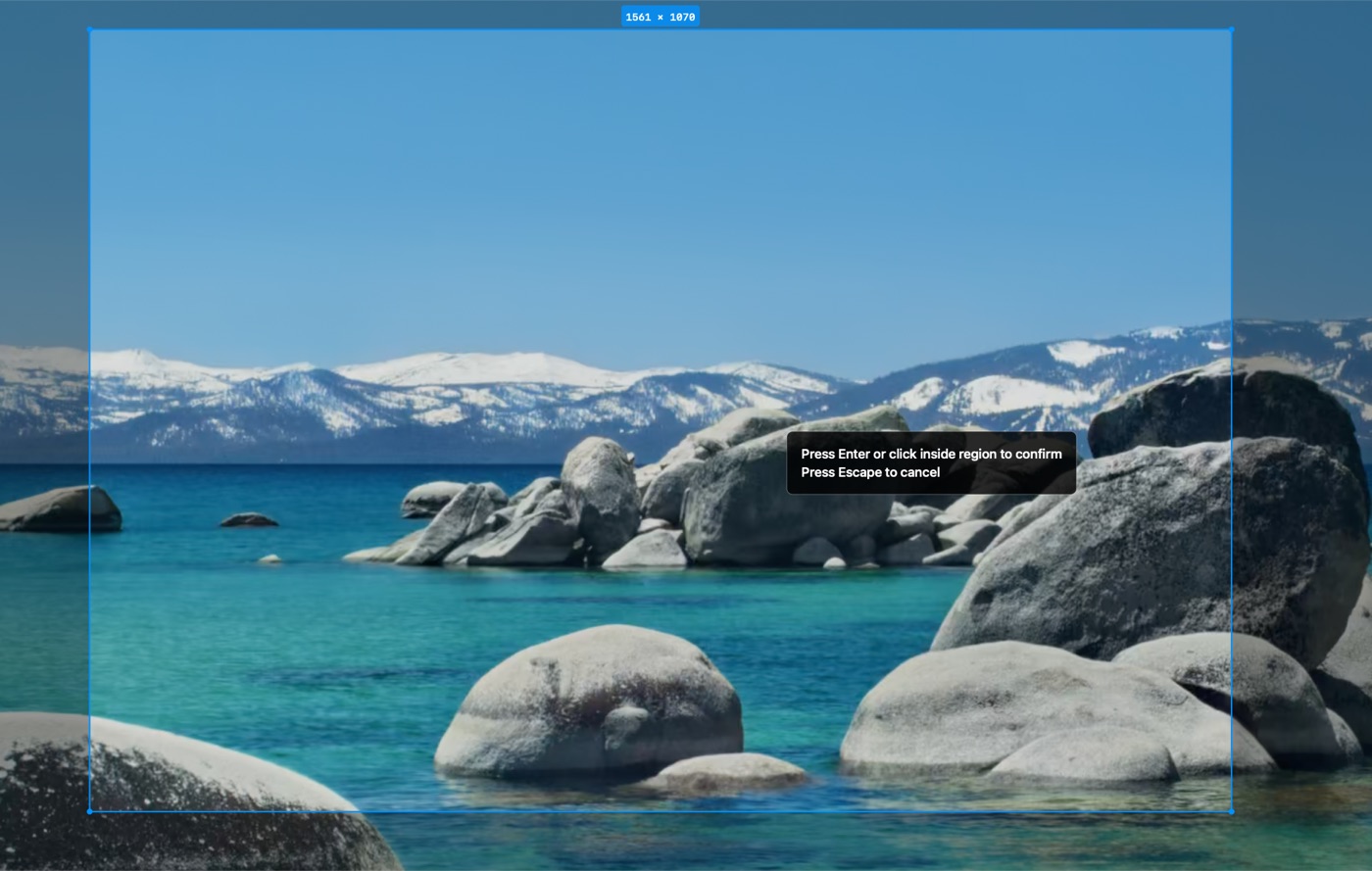
Select a region
Drag out the area of your screen you want to share — or press a preset's shortcut like ⌃⌥⇧+1 to start instantly with a saved region.
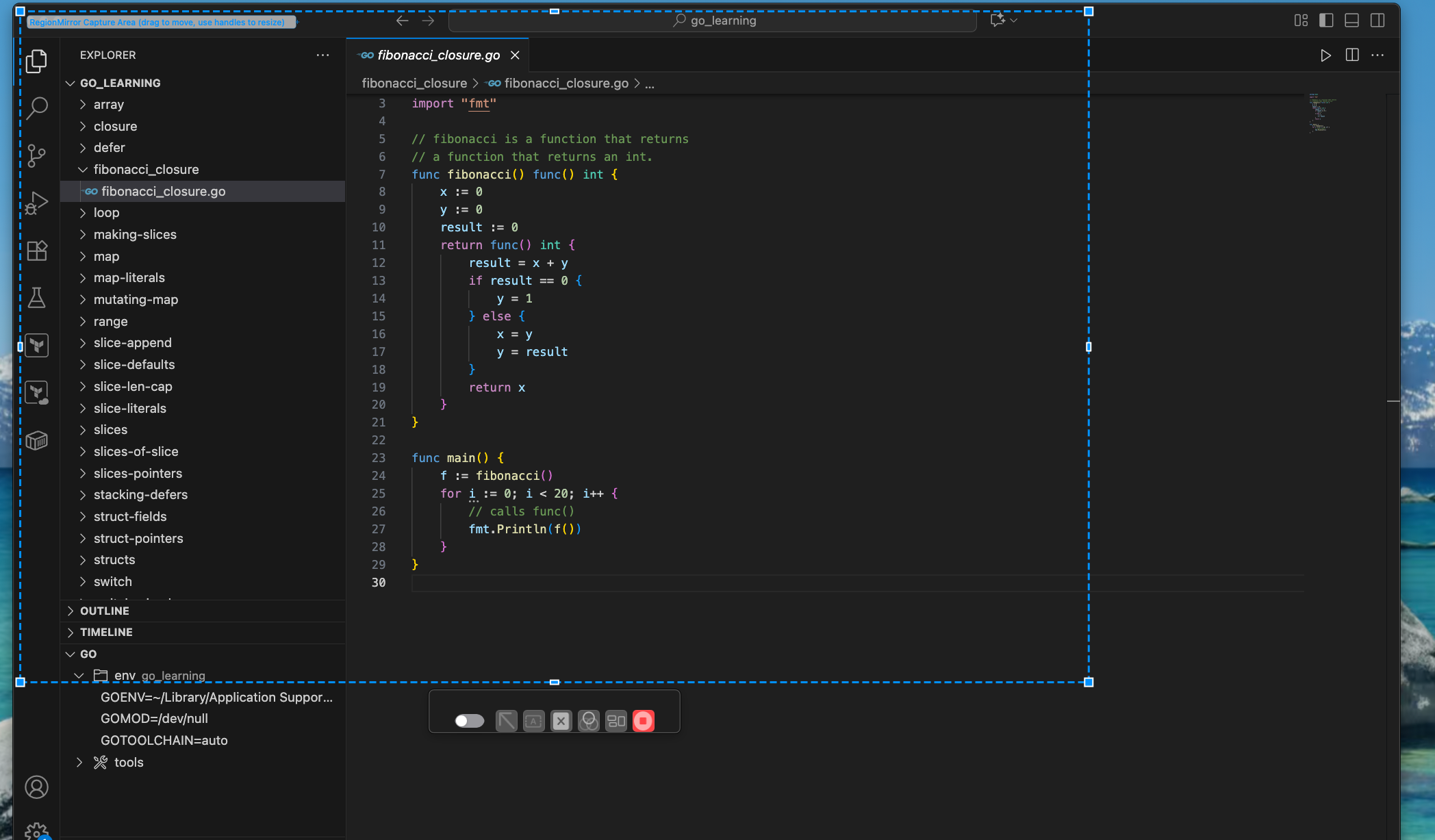
Work normally
Drag windows in and out of the region as you go. Resize or move the region whenever you like — without stopping the share.
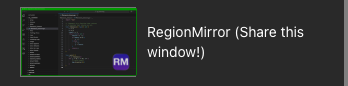
Share the RegionMirror window
In Zoom, Teams, Slack, or Discord, choose window sharing and pick the window titled “RegionMirror (Share this window!)”. That's it.
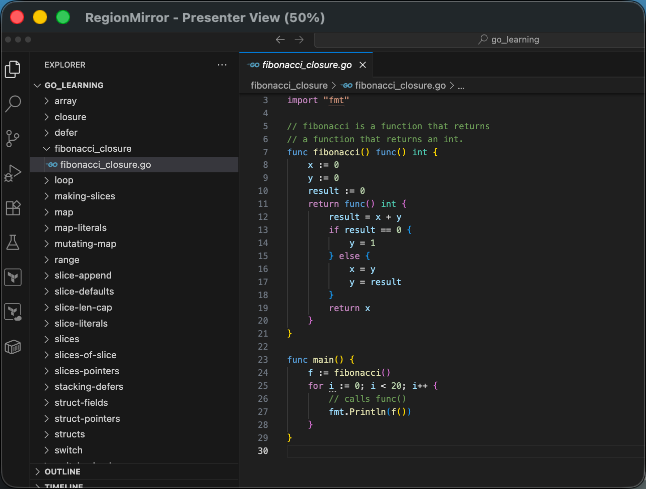
Presenter View gives you a compact live preview of exactly what your audience sees, so you can present with confidence without hunting for the mirror window.
More than a resolution fix.
Every meeting app buries its annotation and drawing tools somewhere different — when it has them at all. RegionMirror keeps a consistent set of presenting tools right on your shared region, so you work the same way in Zoom, Teams, Slack, or Discord.
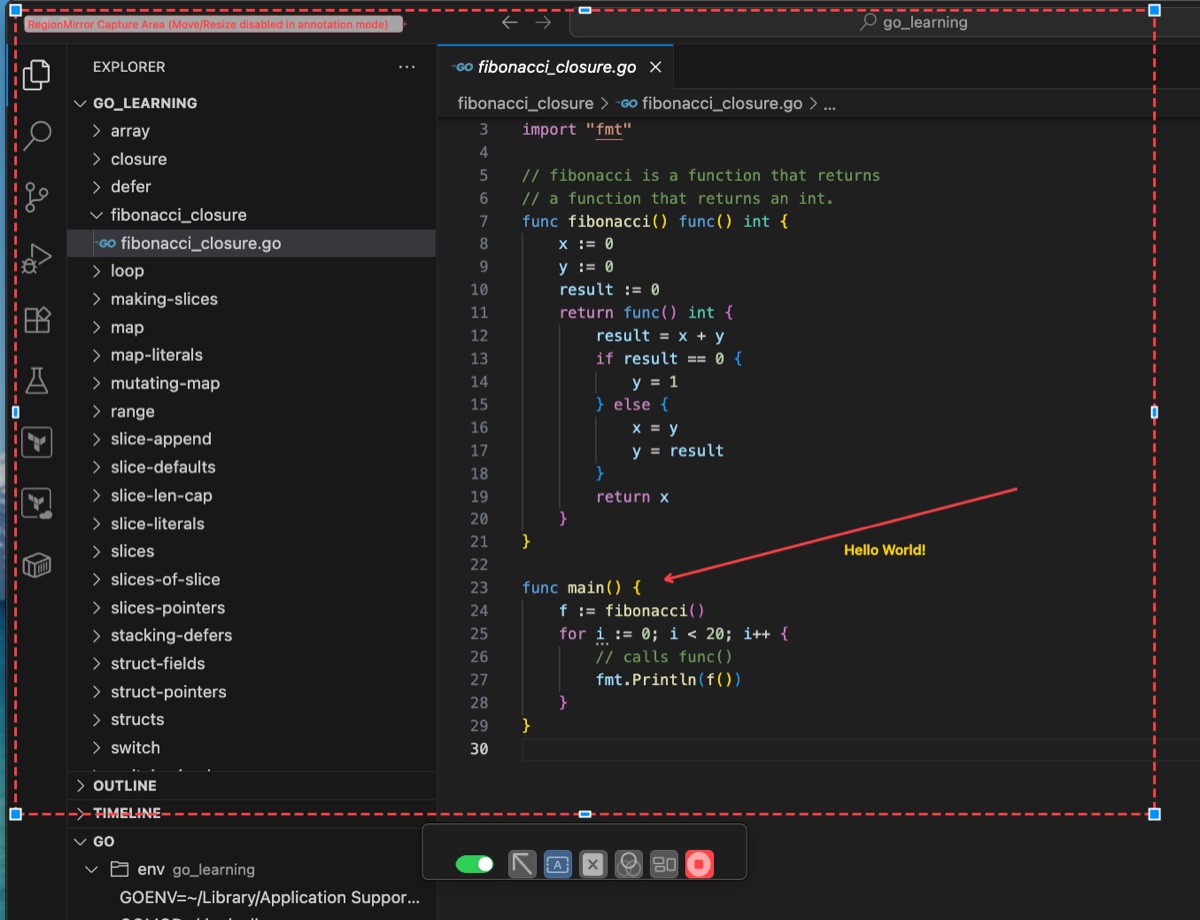
Point without pointing.
Drop arrows and text on top of whatever you're sharing to call out a line of code, a figure in a report, or the next step in a demo. Drag a zoom loupe over fine print to magnify it live for everyone on the call. Your markup stays visible and repositionable as you talk — or set it to fade away on its own a few seconds after you draw, so nothing lingers on screen.
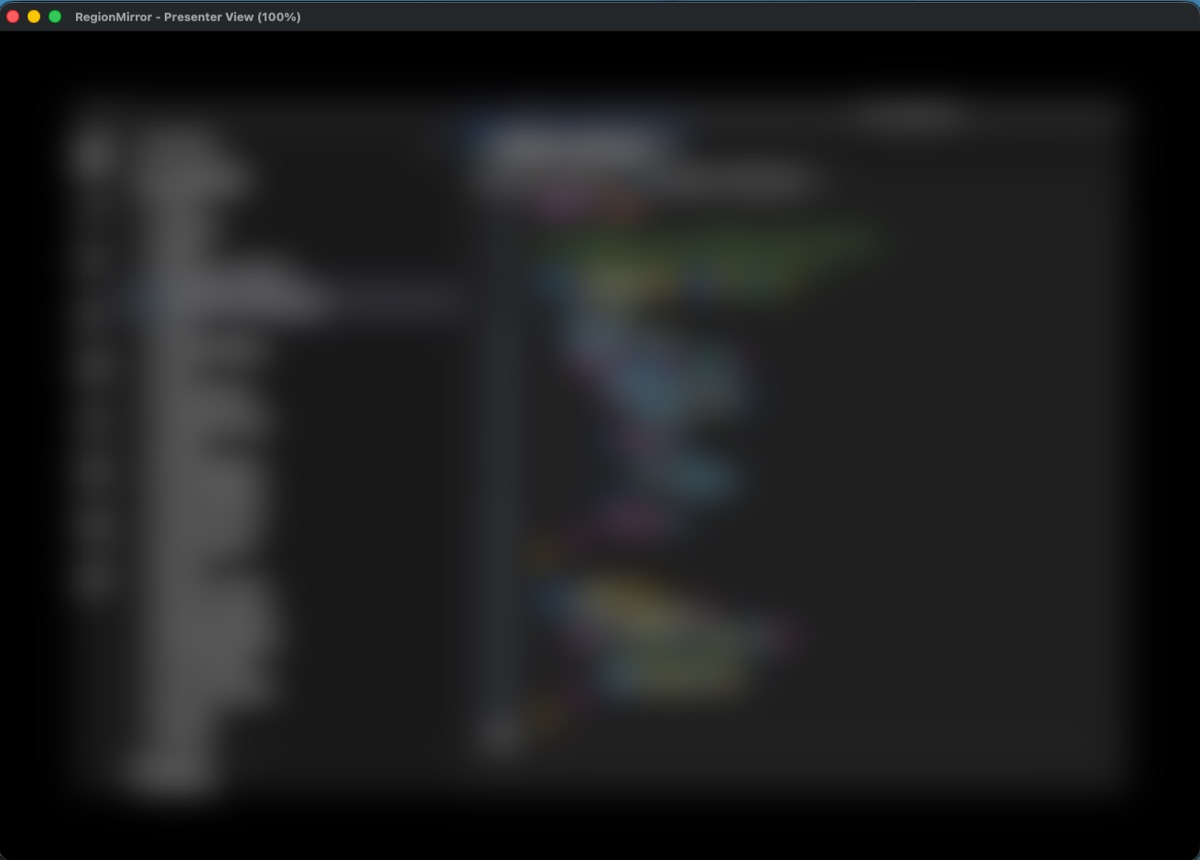
Blur in one click.
Need to type a password, open your inbox, or show a document with a client's name? Blur the shared view instantly, handle it, and unblur when you're ready. Only you see what's behind the blur.
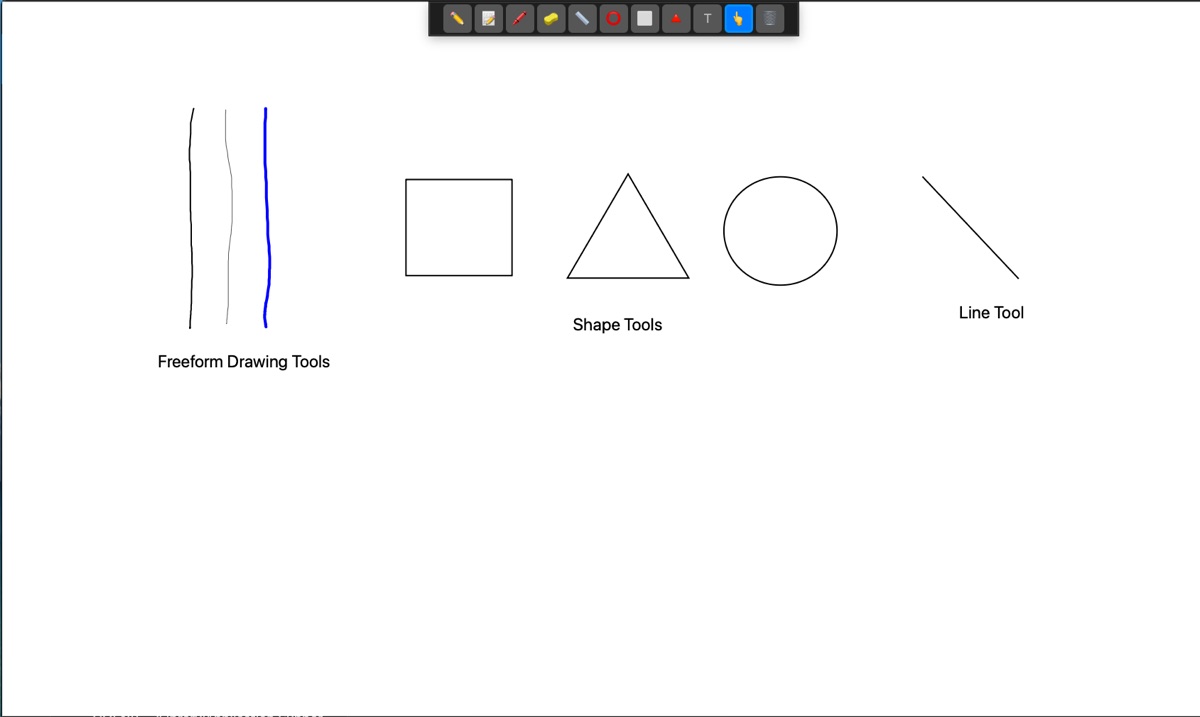
Think out loud.
Switch to a built-in whiteboard to sketch an architecture, map an idea, or work through a problem together — then jump back to your apps without ever dropping the share. Save the board to a PNG when you're done so the group keeps a copy.
Share a saved preset — instantly, in one keystroke
Start in one keystroke.
Save your go-to regions as named presets — each tied to a display and its own customizable global shortcut. Start any of them in a single keystroke, with no drawing a region every time or digging through menus mid-meeting — and switch between presets on the fly without ever interrupting your share.
Readable for them. Effortless for you.
Readable for everyone
Share the region at a size that works for your audience — no more squinting, no more “can you zoom in?”
Multiple apps, one share
Everything you place in the region is shared. Swap between code, slides, and a browser without ever re-sharing.
Private by design
Only the region is shared — Slack, email, and everything else on your desktop stays out of the meeting. One click blurs the share when you type something sensitive.
Keep your whole workspace
The rest of your ultrawide display stays yours. Keep notes, chat, and reference material open right next to what you're presenting.
Works alongside your meeting app
RegionMirror shows your region in a normal macOS window. Share it like any other window in the tools you already use.
Built for macOS
A native Mac app — sharp on Retina displays, lives in your menu bar and Dock, runs on Apple silicon and Intel. Requires macOS 13.5 or later.
If you present from an ultrawide, this is for you.
Developers
Walk through code, a terminal, and docs in one readable frame — while your full IDE sprawls across the rest of the screen.
Sales & demos
Move between your product, slides, and a browser without stopping the share. Your notes stay off-screen.
Trainers
Teach from multiple apps and mark up the screen as you go with arrows, text, and a built-in whiteboard.
Consultants
Present dashboards and reports clearly — and blur the share for a moment when you enter credentials or sensitive data.
Remote teams
One workflow for every meeting: pick a region, share the window, get back to work. Same steps in whichever tool the invite uses.
Try it before you download it.
Click through the actual flow — select a region, watch it become a shareable window, and see what your audience sees.
Demo not loading? Open it in a new tab.
Simple, private, and at home on your Mac.
macOS native
Runs on macOS 13.5 or later. Asks once for Screen Recording permission — the standard macOS requirement for any screen-sharing tool.
Your meeting tools
Works with Zoom, Microsoft Teams, Slack, Discord, and other tools that can share an app window.
Private
Only the region you select leaves your screen. Everything happens on your Mac, and the app contains no analytics or tracking. Privacy policy.
Simple setup
No drivers, no plugins, nothing to configure. Download it, pick a region, and share the window like any other.
Try it free. Keep it for a one-time purchase.
RegionMirror
$19.99
one-time in-app purchase
- Free to download — every feature unlocked for 7 days or 10 sharing sessions
- After the trial, sharing keeps working with a 1080×720 region
- One purchase unlocks custom region sizes, annotations, blur, and the whiteboard
- No subscription. No ads.
Questions, answered.
Does RegionMirror work with Zoom and Microsoft Teams?
Yes. RegionMirror shows your selected region in a normal macOS window. In Zoom, Microsoft Teams, Slack, Discord, or any tool that can share an application window, choose the window-sharing option and pick the RegionMirror window.
Do I need an ultrawide monitor?
No. RegionMirror is most useful on large and ultrawide displays — like a 49 inch 5120×1440 monitor — but it works on any Mac display running macOS 13.5 or later.
Can I share multiple apps at once?
Yes. Everything you place inside the region is shared, so you can arrange as many windows in it as you like and drag apps in and out while presenting — no stopping and restarting the share.
Does the rest of my desktop stay private?
Yes. Only the selected region is shared. The on-screen outline shows you exactly what your audience can see, and you can blur the shared view any time you need to enter sensitive information.
How does the free trial work?
RegionMirror is free to download, and every feature is unlocked for 7 days or 10 sharing sessions, whichever comes first. After that, sharing keeps working with a 1080×720 region. A one-time in-app purchase of $19.99 unlocks custom region sizes, annotations, blur, and the whiteboard.
Is it a subscription?
No. RegionMirror is a one-time $19.99 in-app purchase on the Mac App Store. No subscription, no ads.
Can I start sharing with a keyboard shortcut?
Yes. You can save up to 10 named region presets, each with its own customizable global shortcut (for example ⌃⌥⇧+1, ⌃⌥⇧+2, and so on). Pressing a preset's shortcut starts sharing that region instantly — no region selector — and you can switch between presets with their shortcuts even while you're already sharing.
Can RegionMirror remember my region?
Yes. You can save up to 10 named region presets, each tied to a display. The next time you share, pick a preset from the menu or press its shortcut and the region is restored automatically — no need to draw it again. You can rename, update, or delete presets at any time from the menu or Settings.
Sharing part of your screen, app by app
Step-by-step guides for the way you meet — plus the ultrawide-monitor playbook that started it all.
Share part of your screen on Mac
The general guide to sharing a selected screen region as a window in any macOS meeting app.
Ultrawide screen sharing on Mac
Keep a 49-inch or dual-monitor setup readable by sharing just the region that matters.
Share a portion of your screen in Microsoft Teams
Present a selected portion of your Mac screen as a normal window in Microsoft Teams.
Share an area of your screen in Slack
Show just an area of your screen as a normal window in Slack huddles and calls.
Share a selected region of your screen in Webex
Share a selected region of your Mac screen as a normal window in Webex meetings.
Make your ultrawide screen easier to share.
Your next screen share can be the readable one.
Download Free on the Mac App StoreFree trial · $19.99 one-time purchase · macOS 13.5+
Questions? Email support@regionmirror.com